Controlling Your Experience

Reporting Applications to Discord

Document Version

You may know Applications as bots that automate tasks, to Activities that allow you to play games, collaborate on projects, or share experiences with others directly within Discord. If you encounter a violation of our Developer Policy or Developer Terms of Service, we ask that you report the Application to us. You can do so via desktop, Web or on your mobile device (Android and iOS).

To report a user’s behavior and profile, please visit: Reporting Content or Behavior to Discord.
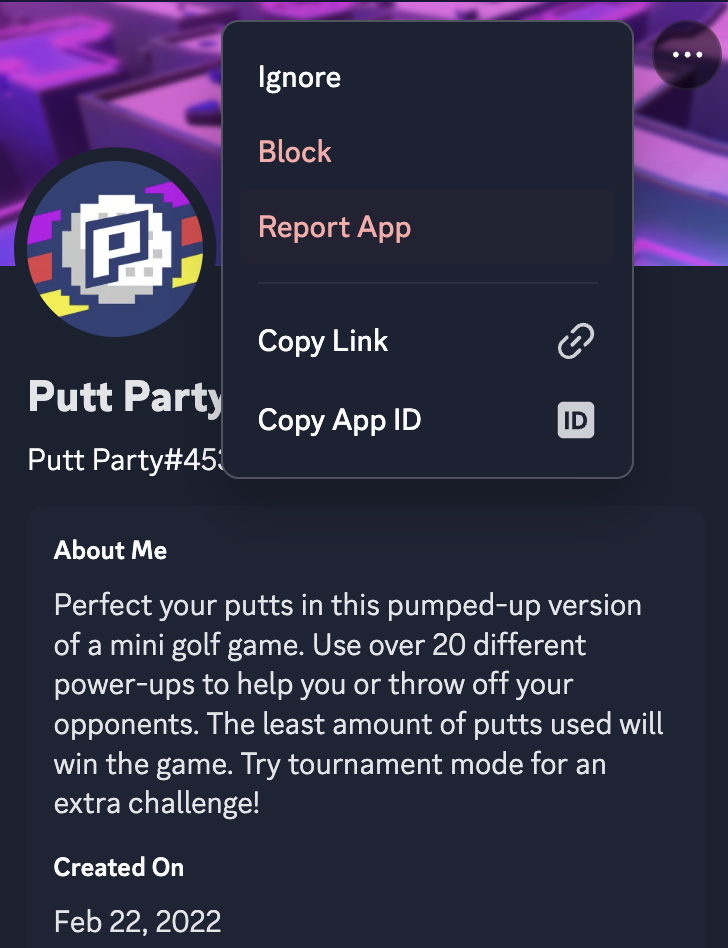
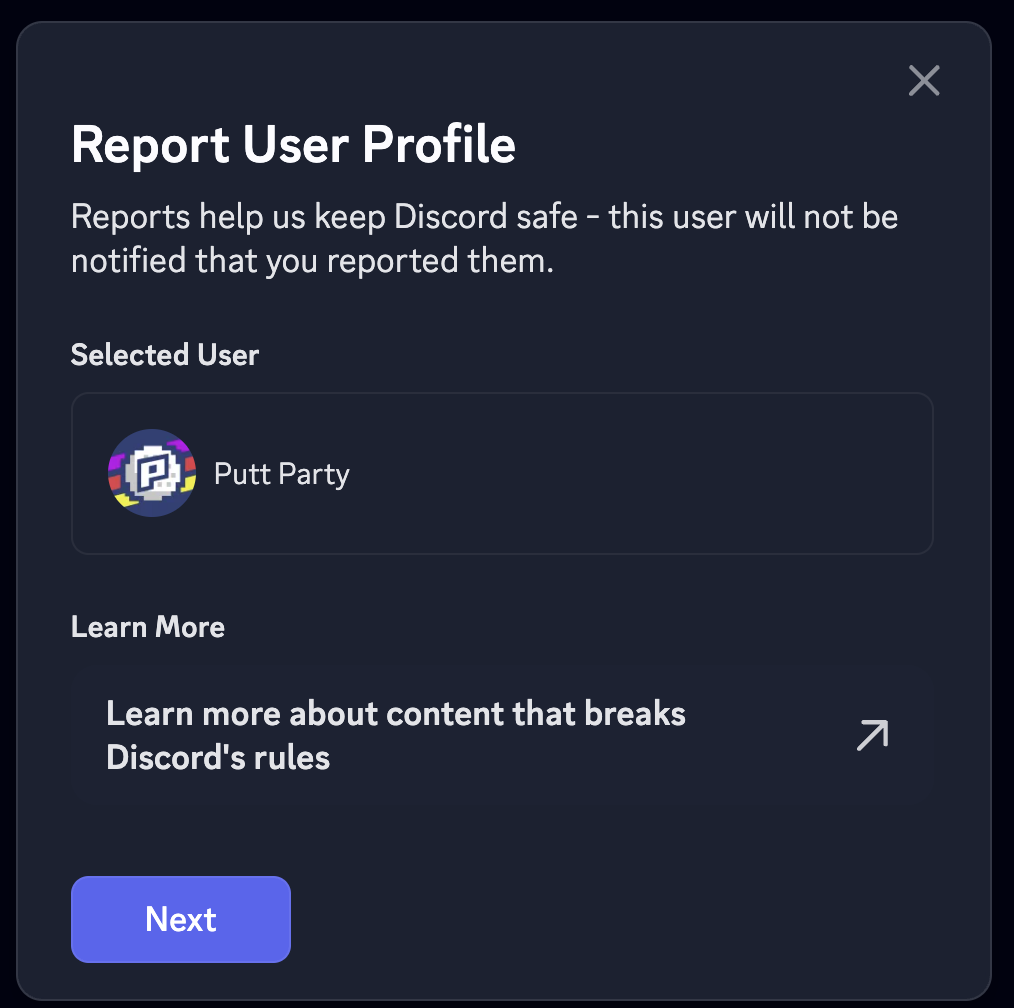
Report an Application via its Profile

  1. Click into the profile of the Application you wish to report.
  2. Click on the three dot menu.
  3. Select “Report App”.
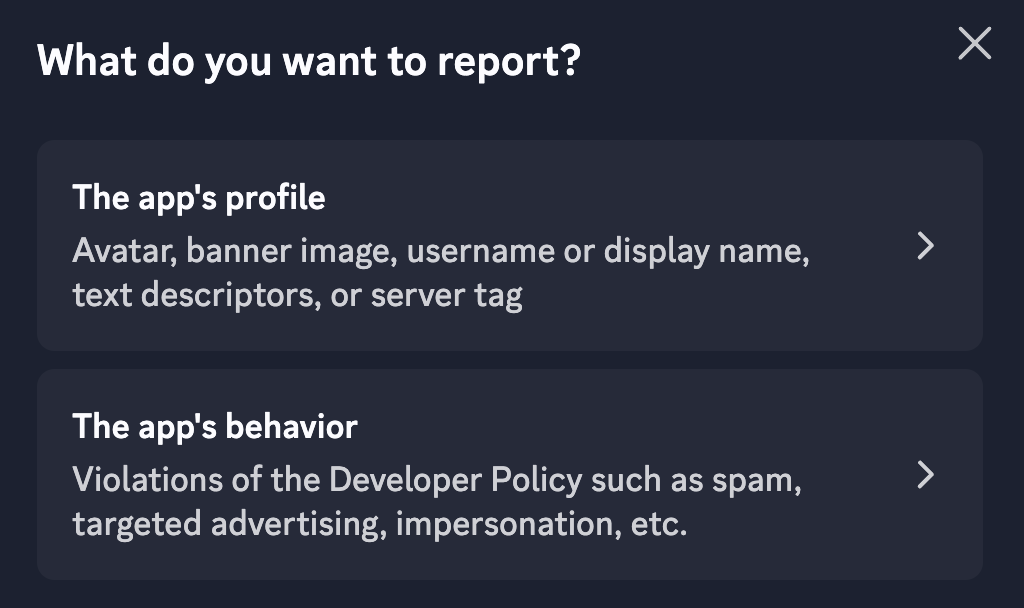
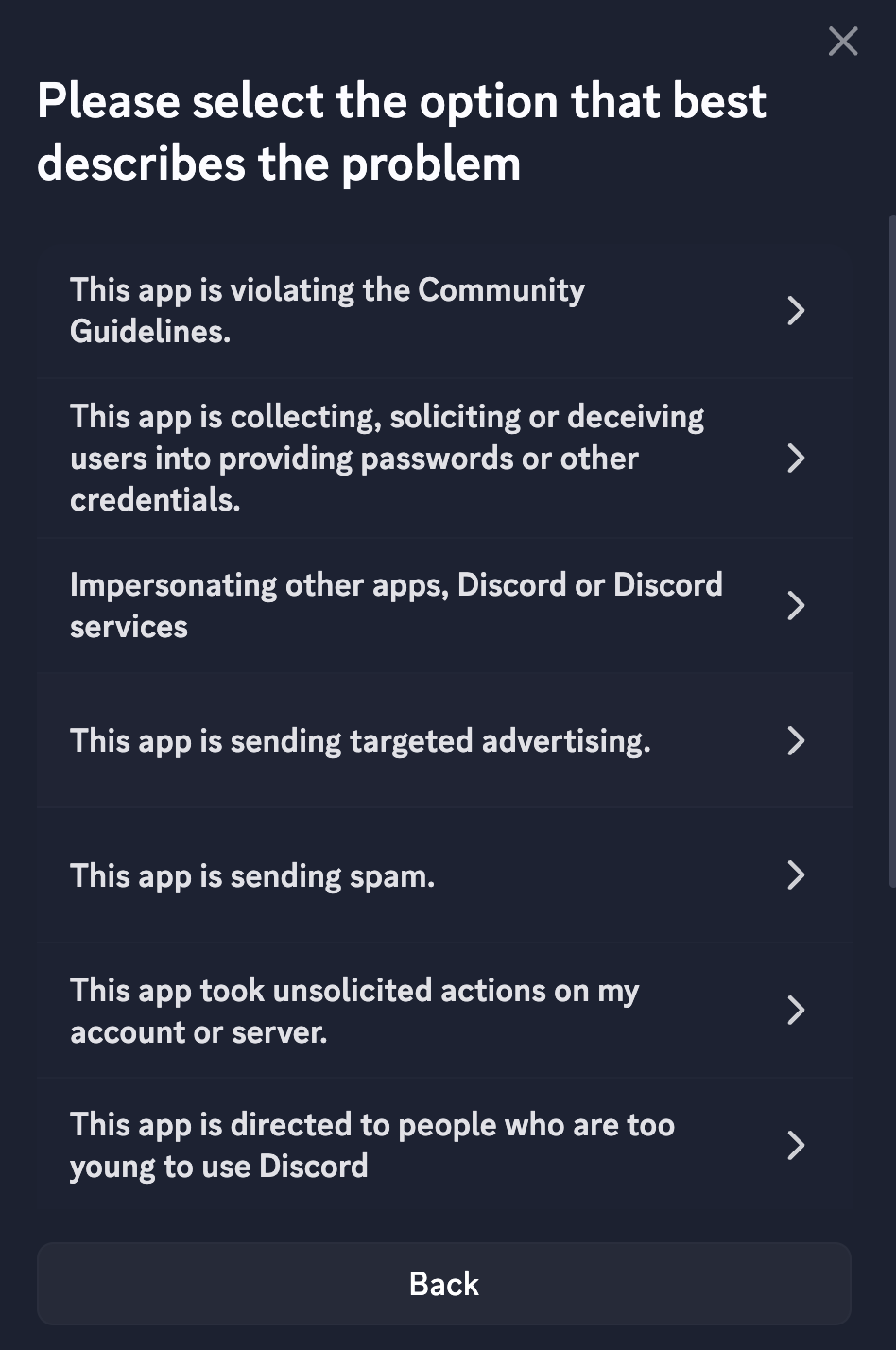
  1. You can select to report specific elements of the application’s profile by clicking “The app’s profile” or report the app’s behavior by clicking “The app’s behavior”.
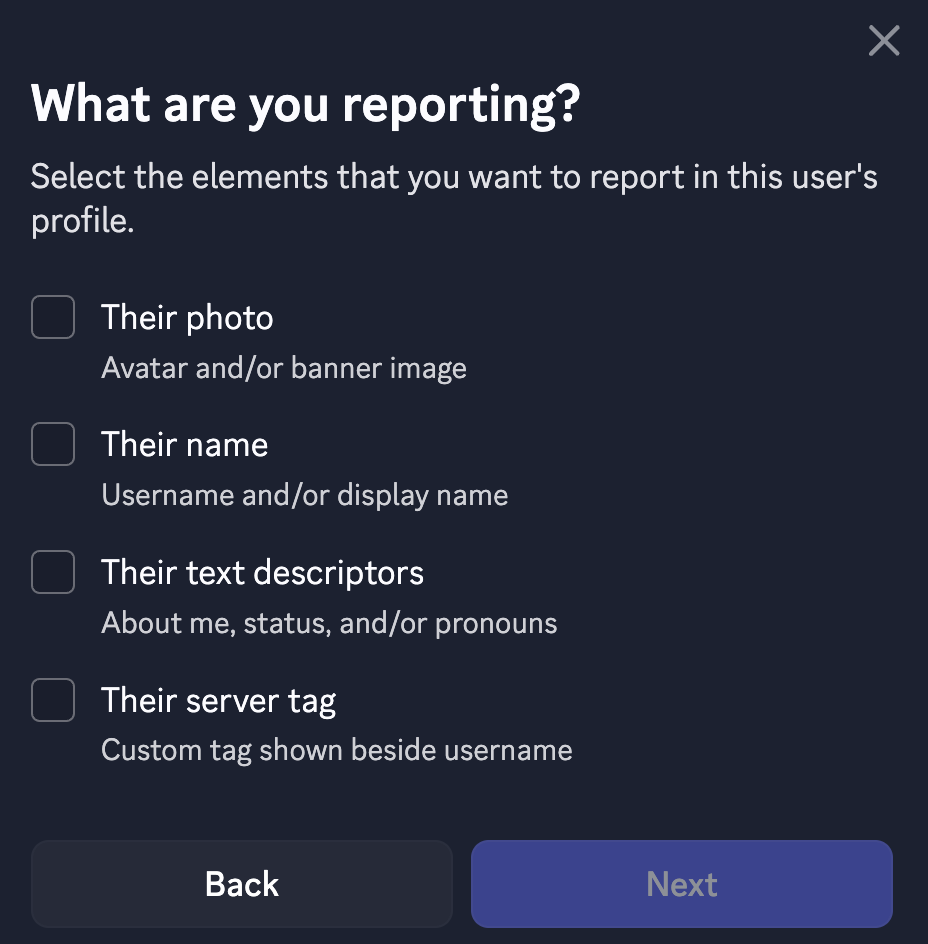
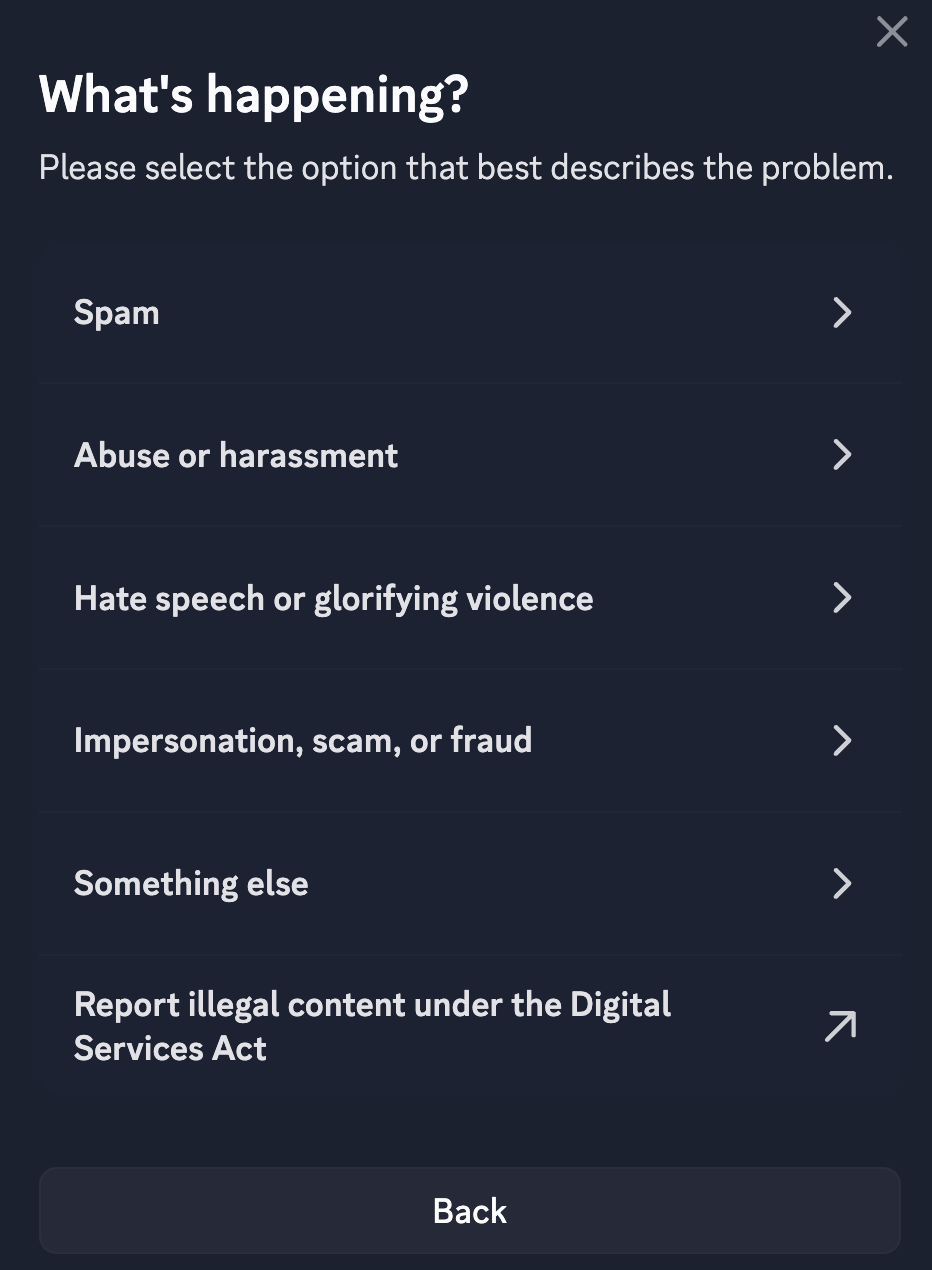
  1. If reporting an Application’s profile, select the element of the profile you are reporting; you can report multiple aspects of a profile at once. Finally, make sure to select the option that best describes the policy violation.
  1. If you are reporting an Application’s behavior, select the option that best describes the policy violation.

Report an Application via Settings

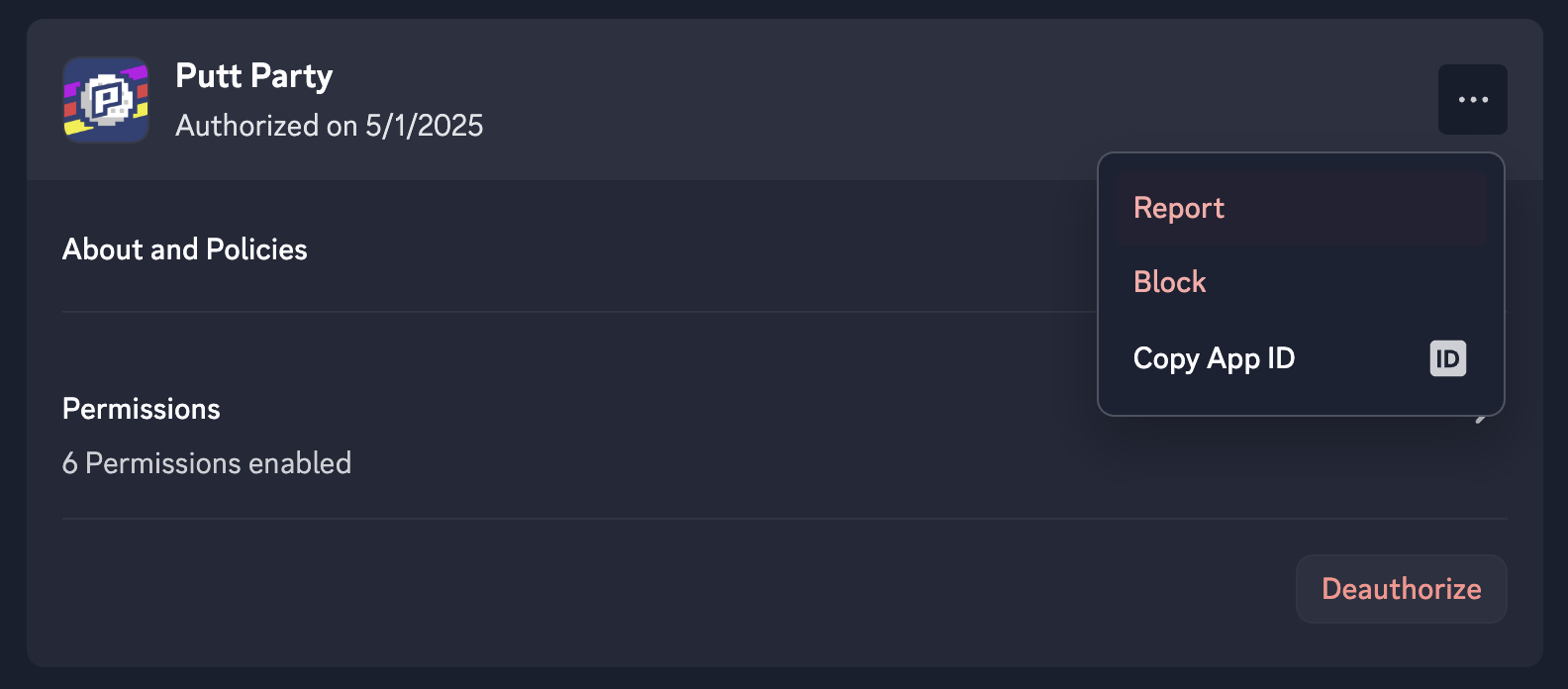
  1. Click the gear icon to visit your user settings.
  2. Click Authorized Apps.
  3. Select the Application you wish to report by clicking on the three dot menu.
  4. Select “Report”.

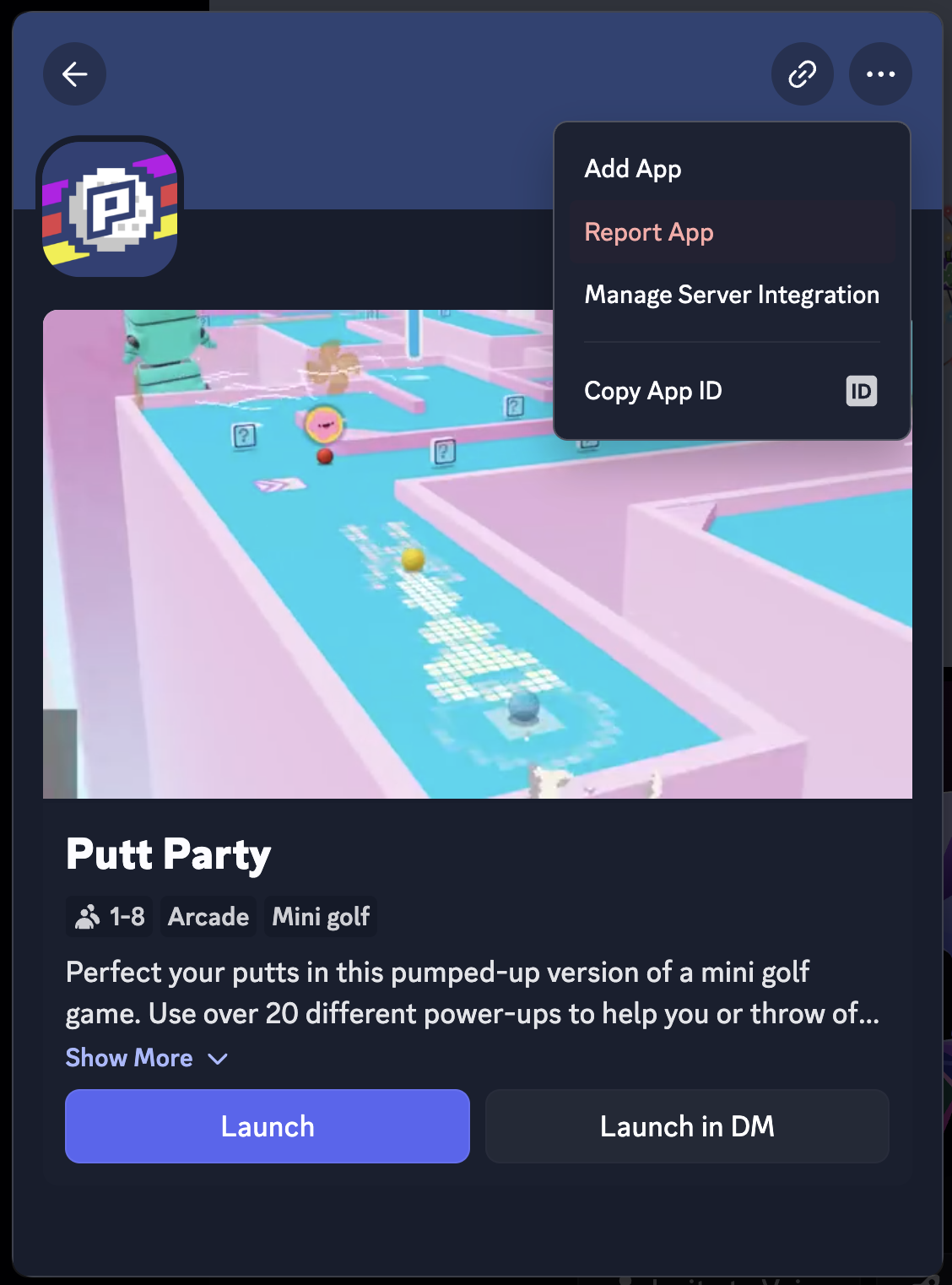
Report an Application via the App Launcher

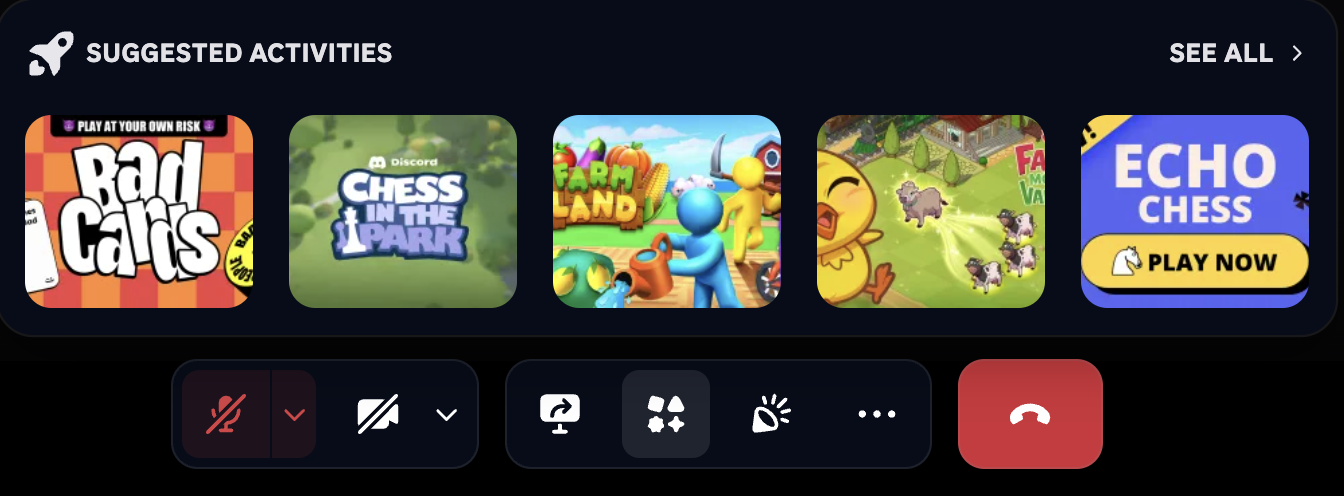
  1. While you are in a Voice Channel call, select the App Launcher icon.
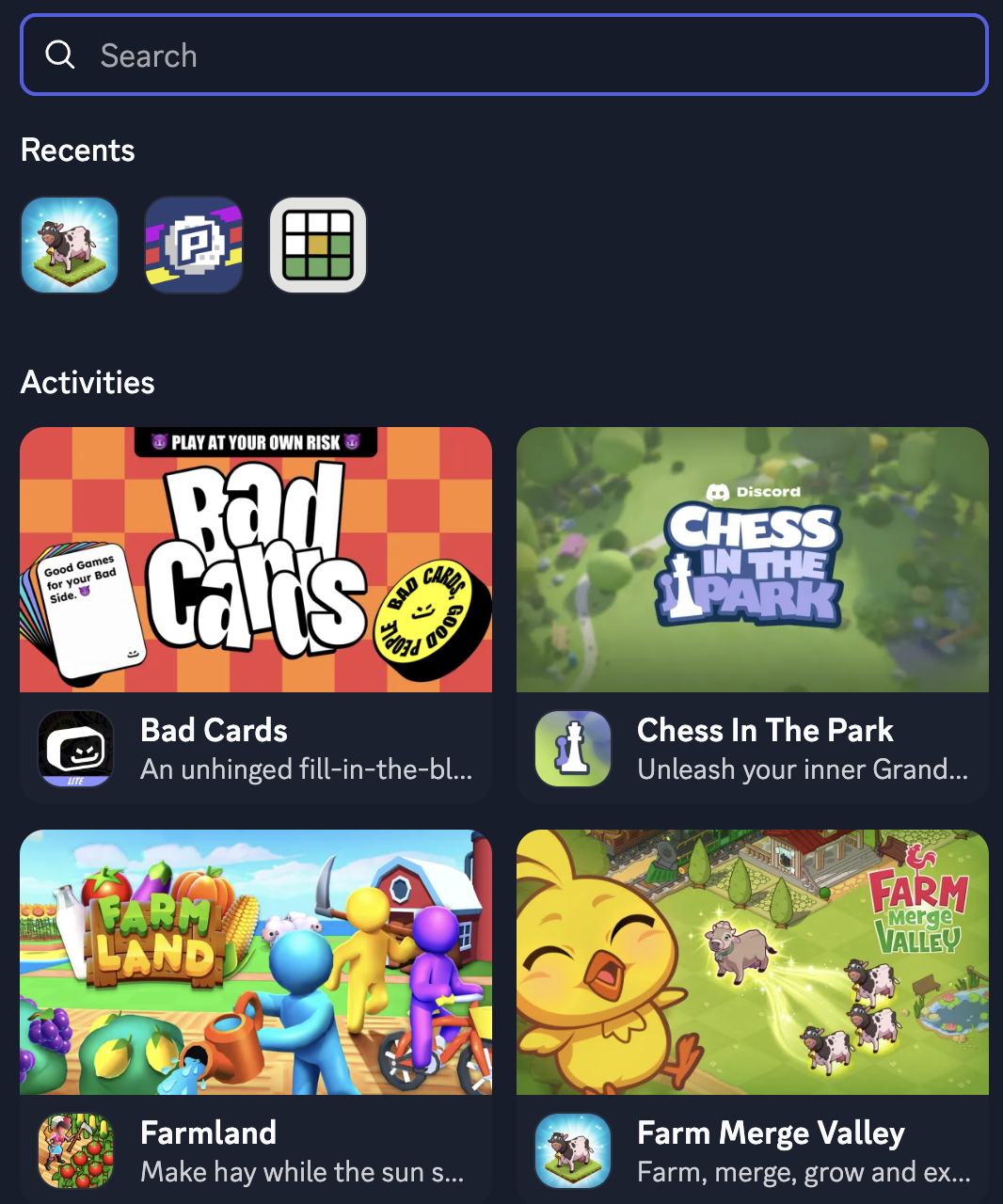
  1. Search for the Activity you wish to report within the App Launcher.
  1. Click the Activity and click the three dot menu.
  1. Select "Report App".
  2. Select the option that best describes the policy violation.

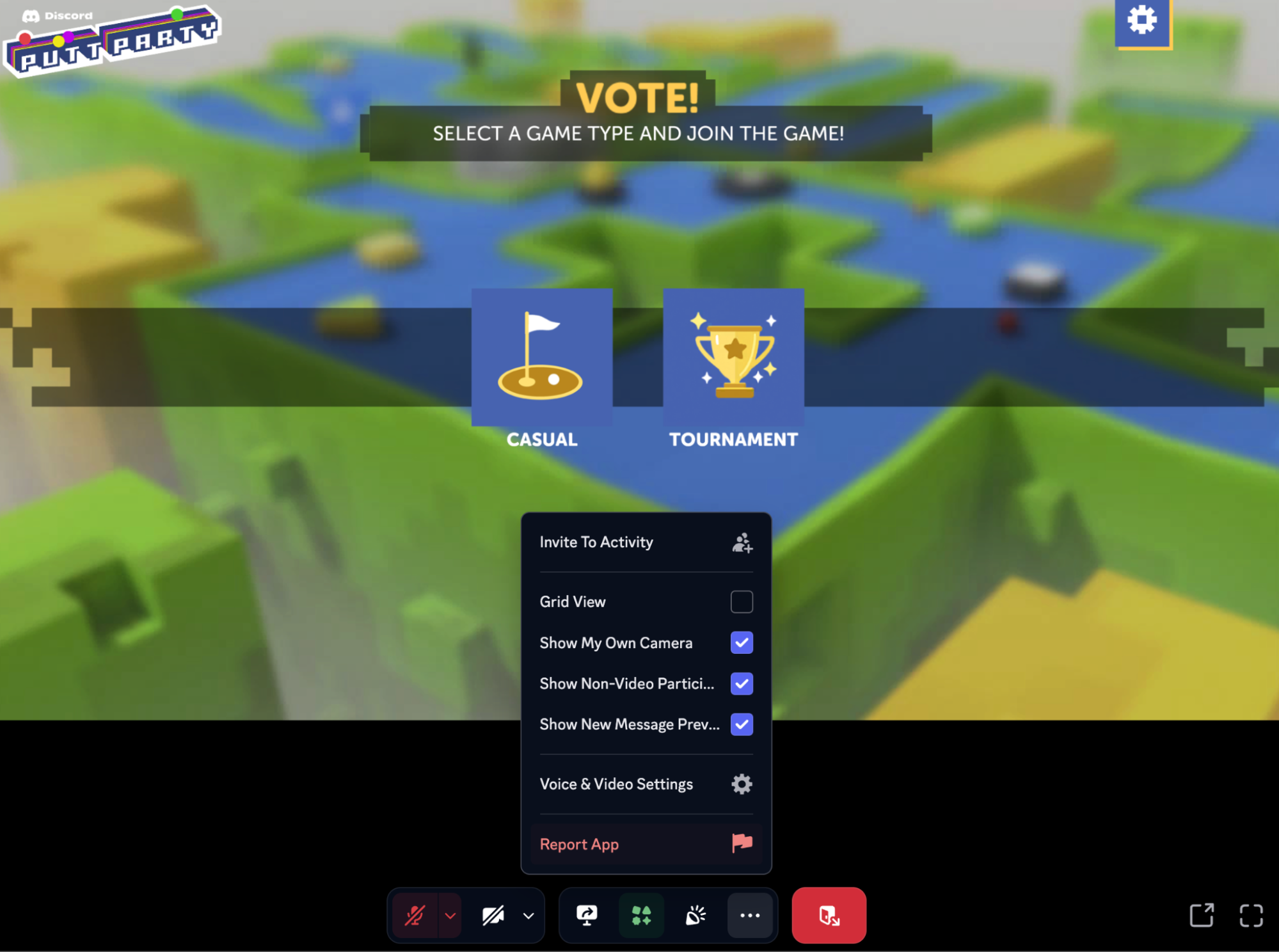
Report an Application Within the Activity UI

  1. During an Activity session, click on the three dot menu for “More Options”.
  1. Select "Report App".
  2. Select the option that best describes the policy violation.

Report Content that Makes An App Ineligible to be Listed Within App Directory

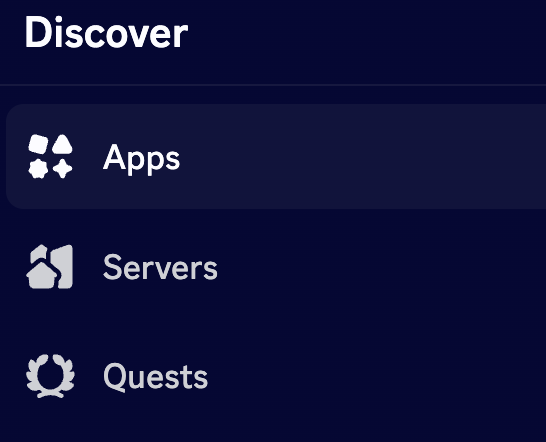
  1. Select the Discover tile on Desktop or Web.
  1. Select “Apps”.
  1. Search for and select the Application you wish to report.
  2. Once you are on the Application’s page, click the three dot menu.
  3. Select “Report App”.
  4. Select “The app’s behavior”.
  5. Select “Next".
  6. Select the “This app contains content that makes it ineligible to be listed or discoverable in the App Directory” reporting option.
  7. You will be directed to sign into your Discord support account in order to submit a report through our support portal.
  8. You can also report the app for other behaviors that go against our Developer Policy.

Reports Under the EU Digital Services Act

  • EU users can report illegal content under the EU Digital Services Act by clicking here or on the Application profile by clicking the three dot menu, selecting “Report App”, selecting “The app’s behavior”, and clicking on “Report Illegal App Activity under DSA.”
  • EU government entities reporting illegal content should follow the process outlined here.
  • EU users will be required to go through a verification process and follow the prompts to provide details and descriptions for their report.
  • If you wish to report a message from an Application under the EU Digital Services Act, a message URL is required. Here’s how to find the message URL for the desktop and mobile apps.
    • Desktop App
      • Navigate to the message that you would like to report.
      • Right-click on the message or press on the ellipses icon when hovering over the message.
      • Select Copy Message Link.
      • The message URL will be copied to your device’s clipboard.
    • Mobile App
      • Navigate to the message that you would like to report.
      • Hold down on the message to reveal a pull-up menu.
      • Select Copy Message Link.
      • The message URL will be copied to your device’s clipboard.

What happens After I Submit a Report?

We use a combination of automated and human-powered review methods to process reports. Report review times may fluctuate due to process changes, volume surges, technical issues, and backlogs.

While not every report identifies a violation of Discord’s policies, your reports help us improve and enhance Discord's safety practices. 

When you submit a report, your identity is not shared with the account you reported. This is true even if the report is appealed. We never intentionally disclose the identity of a reporter unless we are legally required to do so. Examples of when this may be the case are if Discord receives valid legal process requiring us to provide the identity of the reporter and requests to remove content under the Digital Millennium Copyright Act (“DMCA”). The DMCA allows the reported user to request further details about the complaint, including the name and email address of the claimant, a description of the allegedly infringed work, and the reported content. In such cases, Discord provides this information in accordance with copyright law requirements.

Tags
Reporting
User Safety